RSS
Showing posts with label How to do's. Show all posts

10/19/10

Play games without a disk using Daemon tools lite

Many of the games that we use today need the game cd/dvd to be inserted during gameplay. It is very annoying especially if you play the game frequently. And there's a good chance of your disk getting damaged due to frequent use. There's another technical non compatibility here. The game is installed into your hard disk and it uses the cd/dvd for getting additional data during gameplay.The hard drive is much faster than your optical drive. So the game might run slowly.

There are ways to get around this problem. If we create a false/virtual optical drive and mount the game cd/dvd 's image onto that, then the system would think that it's a real optical drive with the game cd/dvd in it! So how do we emulate a drive? You need software to create a virtual drive and image file. Most of them are expensive. But there's an inexpensive option :Daemon tools lite. The lite version is free for personal and non commercial use.

Step by step instructions

1.Download Daemon tools lite from here


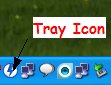
Daemon tools tray icon
2.Install it (don't forget to choose the free license option while installing) and reboot the machine.

After the reboot, the software will launch itself and create a new virtual drive which you can see in 'My Computer'. A tray icon will also be there.

3.Now insert the game cd/dvd, then right click on the daemon tools tray icon and click on 'Disk Imaging'.

4.The 'Disk Imaging' window will appear. Select the drive into which the disk is inserted and choose a reading speed. Reading at low speeds is better and safer.

5.You can change the destination of the saved image file if you want by clicking the button next to the file path. There's no need to change the image format. Many users are not familiar with the MDX format. But actually it is a very good one.

6.Leave the checkboxes the way they are (1,2 and 3 selected). But if you want to prevent somebody from using the image file (kind of parental control), you can add a password by selecting the 4th box.

7.Click start and close the window after the image creation.

8.Now to mount the image right click on the tray icon->go to image catalog->choose your image file.

Now the image will be loaded to the virtual drive and you are all set to go. Start the game and enjoy.

9.To unmount the drive, right click on tray icon->Virtual Devices->select your virtual drive->unmount image.

It is better to prevent daemon tools from starting with windows as it may slow down your system. To do that, r.click on the tray icon->preferences->uncheck 'Autostart'->Apply->Close.

Virtual drives can be used for many purposes other than gaming. And image file creation can be used as a method to backup your old disks.
If you enable compression, you can save disk space too. It compressed my 679 MB CD into a 413 MB MDX image file.
Have fun!

10/10/10

How to find the best motherboard that suits you..... A guide on motherboard and its various parts.

I promised to write a post on motherboards in one of my previous posts. So here it is… After reading this post, you will get a fair idea about the motherboard and its various components.
Before you buy a motherboard, you should decide which cpu you’re going to buy.

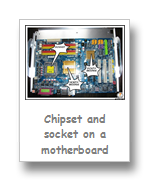
The Socket
The socket on the motherboard supports the cpu. Intel and AMD use different types of sockets. Intel uses Land Grid Array (LGA) and AMD uses Pin Grid Array (PGA).
Socket 775 and socket 1156 are the most common sockets for Intel processors (as of now). Socket 1156 is the latest one which offers support to the Core series (i3,i5,i7) processors.
Socket AM2+ and AM3 are the common AMD sockets. AM3 is the latest model that offers support to CPUs like Phenom II.

Bus Speed
The Front Side Bus (FSB) is a system that connects the cpu to the northbridge. The northbridge contacts the memory (RAM) and other components and passes the data to the cpu. The speed of the FSB plays a very important role in the overall performance of a computer. So choose a motherboard with a high speed FSB. This will enable you to install a faster cpu in the future, if needed. Overclocking is another advantage which I’m not going to cover here.

The Chipset
The north-bridge and the south-bridge together constitute the chipset. The
north-bridge is the more important component as it is more involved with the cpu. The chipset plays a major role in the graphics performance of machines without graphics cards, as it accommodates the IGP (integrated/onboard graphics processor). Other functions include memory controller (regulates communication between the CPU and RAM), graphics controller (handles communication between graphics card and CPU), onboard audio etc. So try to buy a motherboard that has a good chipset. Go to a manufacturer’s website and you will be able to find the chipset that suits your needs.
Most part of the above paragraph doesn’t hold true for the high end models of core series CPUs from Intel (i series). The GPU (Graphics Processing Unit), memory controller and the graphics controller are integrated the to CPU’s die itself!
AMD had moved the memory controller to the cpu die a long time ago. But nothing much has happened since.

Memory Slots
It is into the memory slot that you insert the RAM. DDR, DDR2 and DDR 3 are the three types of RAM that are in use today and DDR3 is the fastest of them all. The type of RAM which the motherboard uses will be specified in the manual itself. A slot can accept only one type of RAM. Always go for the motherboard that supports the latest RAM module. No. of slots and max. memory support are the two other factors. That is not very relevant for a desktop user as most of the boards these days have at least 4 slots and can support a minimum of 4 GB which is more than enough. If you’re a pro. gamer or somebody who frequently uses memory intensive programs, you may consider these 2 factors also.

Peripheral Interfaces
As you know, all the peripherals of a computer are connected to
the motherboard. There are ports inside and outside the motherboard to which we connect the peripherals. Different types of ports are described below:

IDE port    : predecessor of SATA port. Used for connecting optical drives,HDD.

SATA port: a lot quicker than PATA. Used in all modern systems.

FDD port  : Floppy disk drives are not used anymore (normally) but many motherboards still come with an FDD port. Maybe for advanced users. But even bios flashing is too easy these days so you need not worry about it.

USB port    : Generally used for connecting external devices viz. pen drives, external hdd, printers to the pc. USB 3.0 is the latest . Make sure that you buy a board that supports USB 3.0. It’s about 10x faster than USB 2.0.       

FireWire port: Very similar to USB, but offers better speed (not on paper but in reality) and networking capabilities. Almost all the modern motherboards come with a firewire (IEEE 1394) port.

Other ones like parallel port, serial port etc are standard across all motherboards.


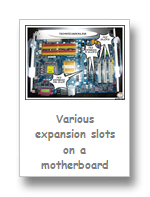
Expansion slots
These are the array of slots located on the south and central part of the board. You will generally
see only 3 types of expansion slots theses days : PCI, PCI x1 express and PCI x16 express slots. The PCI slot houses devices like LAN card, sound card etc., the PCI x1 express is not commonly used. Certain TV tuner cards and graphics use it. PCI x16 express slot is used by graphics cards. Make sure that you have at least two PCI slots and one PCI x16 express slot on your motherboard.

Manufacturer’s reputation
It’s always better to buy a crucial component like motherboard from a reputed manufacturer. Reliability and post sales service are the major reasons. Gigabyte, ASUS, MSI and Intel are some of the leading manufacturers. If you ask me, I will always recommend Gigabyte motherboards. They often add useful features to their motherboard. It is also the most stable motherboard out there.

Final words
Hope that I managed to cover almost all the factors you need to consider while buying a motherboard. A good motherboard alone cannot make a super fast system. It’s a combined work. CPU, RAM and Hard Disk are the three other important members of the network. Make sure that the other three are also in good condition.

6/1/10

Browse websites offline using HTTrack

here are many websites that we regularly visit to get some already added data. You might not have the time to read all the articles at once. Or you might not be able to access the internet whenever you want. Saving every page on the website separately is both difficult and inconvenient. But a software called HTTrack can help you. HTTrack is a free  and easy-to-use offline browser utility. It downloads the website completely to your hard disk. Later you can surf the site offline as if you’re online just by opening the page on your browser. You can access the website from anywhere. It downloads everything including html, images etc from the target site. HTTrack can also update an existing mirrored site, and resume interrupted downloads. HTTrack is fully configurable, and has an integrated help system.


And this software can be used as a backup tool also. If you’re a webmaster, you can simply use this software to download all the data from the server to your hard disk. So even if something goes wrong, you will be able to redo what you did in just a few minutes!

5/29/10

How to shorten a URL???

Very often we struggle with long URLs. They are not email  or chatbox friendly, and it is impossible to remember them. There’s a very simple method to shorten URLs. Just go to a URL shortener website and enter the URL. It will give back a short URL without any delay.

http://ow.ly/1RhXb This is the shortened URL of this blog created using ow.ly

The shortened URL I created may not be the easiest to remember but it is useful. Most of these websites nowadays allow us to create customized, short URLs. tiny.cc is one of them. Here is the one I created for my blog : http://tiny.cc/princeofheartz       It is easy to remember this URL.

notlong.com is another url shortener.


But there’s a problem with these shortened URLs. How can the others trust your link? Especially if you post it in a blog or email. The user is straightaway directed to the site as he clicks the link. They wont know where the shortened URL is going to take them. This is actually a big problem. I use shorturl.com and I only post the preview URL which they provide so that they wont go directly to the real site. So regular visitors will follow the link without any worry. They also provide a free custom subdomain service.


Note: There’s no need to use this service every time you see a slightly long URL. Use them to shorten something like


http://techwizardonline.blogspot.com/2010/05/download-videos-and-images-in-simplest.html 


to  http://preview.alturl.com/4rj5 or http://alturl.com/4rj5 or http://videotutor.notlong.com

5/26/10

Linux applications that run on Windows

I recently came to know that many people setup Linux on their PC just to run some basic applications. Many institutions now use Linux as a part of cost cutting. The employees and students don’t really like it. But they are forced to use it and they often get entangled in the mysterious loops inside Linux.

Actually UNIX is user friendly. It's just selective about who its friends are. :P

It is OK if you use it in your institution. But is there a need to setup Linux in your PC itself for doing work/learning at home? Thankfully, many of these apps are now available for Windows also. You can download and install them very easily on your Windows PC.


Some of the widely used general purpose apps in Linux are given below:


Gimp: It is an Image Manipulation Program. Used for retouching photos, creating logos etc. Widely used by students


OpenOffice: A Linux alternative for the MS Office Package. Many people find it very useful. Infact it is the most used.


Blender : Blender is a free open source 3D content creation suite. Very very famous.


Lyx: It is a document processor that encourages an approach to writing based on the structure of your documents (WYSIWYM) and not simply their appearance (WYSIWYG).


VLC Player: I think Windows users are more familiar with this software. Very famous video player. :-D


Tuxpaint: Used by kids/students. But it found a place in the widely used apps list.


Avidemux: A very famous video editing software. Not very user friendly. Just like the Linux OS itself.


Amarok : An audio player. There are better alternatives. But I added it because of its popularity.


All these applications(there are much more) can be downloaded separately for the Windows platform. Click on the app name and you will be taken away to the respective websites.


And there are people who use other KDE tools in Linux. KDE is now available for Windows. The latest stable version is 4.4.0. It is still in its early days but I tested it and it worked very smoothly. I only downloaded a few apps. But almost all KDE apps can be downloaded. Some screenshots are added in the album below.For more info regarding KDE for Windows and its installation, visit http://windows.kde.org


Of course advanced users may use Linux because there these apps will be more stable and there are many other Linux features that they can exploit. But for all day to day uses of an average user, this method is better. I strongly recommend all of you to try Linux (not as a replacement for Windows), but only after learning its strengths and weaknesses. As I said, using it for running a few apps is like using a super computer for basic calculations.

5/20/10

Download videos and images in the simplest way

I know that this is not the first time you are reading an article with a similar heading… Most of them are useful for downloading Youtube videos only. Click a link on the article and you will be directed to the page of some snake oil downloader software or to some snake oil download websites.


I’m not saying that this is a perfect article but I’m gonna tell you my way of doing it using a tiny addon. Using this trick you can download videos virtually from any website.


I assume that you’re already using Mozilla Firefox if you’re not, download it from here. I’m not asking you to download it for the sake of trying this tip but because it is undoubtedly the best web browser out there right now. OK. So let’s move on.
Now open Firefox and go https://addons.mozilla.org/en-US/firefox/addon/3006/


You’re now on the download page of DownloadHelper, a tiny addon for Firefox. Now click on add to firefox button, click allow(pop up), click install and then restart firefox. Done!


popup


software installation


icon


You will be able to see a new icon in the Navigation Toolbar.

When DownloadHelper detects it can do something for you, the icon gets animated and a menu allows you to download files by simply clicking an item. When you are on a page containing links to images or movies, you can download some or all of them at once.
The latest version allows you to convert the downloaded movies to other file formats. The conversion process is explained in detail here.
It has got some other useful functions too and advanced users can access them by right clicking the addon icon. For me this is the most convenient and reliable way to download videos and images. Plus you get a video converter for day to day use. You cant ask for anything better.
NOTE:The author cannot be held responsible for any issues associated with copyright.

7/27/09

Virtual Machines for testing Operating Systems.

Technorati Tags:
Many of the users are still not aware of the uses of Virtual Machines (VM). It is not commonly used but that doesn't mean that it is useless. The term Virtual Machine is a bit confusing but it is nothing more than a Software. I will tell you about the basics of a Virtual Machine. After reading this post, you will be able to set up a Virtual Machine easily.OK lets start…

What is a Virtual Machine?


A virtual machine (VM) is an environment, usually a program or operating system, which does not physically exist but is created within another environment. In this context, a VM is called a "guest" while the environment it runs within is called a "host." You can install Operating Systems on a Virtual Machine software without disturbing your default operating system. What a Virtual Machine does is that it creates a virtual environment for an operating system to run. The VM software can be installed onto a computer just like you install a software. But it runs in a different way. The term Virtual Machine has several definitions. Actually there are different types of virtual machines (having different functions). I don’t want to explain too much. I will tell you about the other types of virtual machines later. Today, we will learn about installing an operating system on a VM.

Why should I install an Operating System using a VM?


Imagine that you’ve got a no.of Linux distros and you just want to test them and select the suitable one to dualboot. It is difficult to install them one by one in the regular way. And it is not easy to remove them also. The changes you make during an installation is often difficult to revert. But you can test them on a virtual machine like installing a software and you can also remove them very easily. Even if something goes wrong with the installed operating system or the programs in it, nothing will happen to the host OS or the data in your computer.

How to setup a Virtual Machine?


To setup a Virtual Machine, you need the following :
1) A Virtual Machine Software.
2) An image file or a CD/DVD of the Operating system you want to install.
3) A decent machine.
1) Virtual Machine Software : A lot of them are out there. VMware Workstation is a very popular VM but it is vey costly. A free but very efficient VM software out there. It is called Virtual Box (Sun xVM) Download it from here.
2) You can use a DVD or image file to install the OS. I will be using an image file of Sabayon Linux which I downloaded from their website.
3) A P4 with 1 GB of RAM will be enough.
Actually there is no need to explain the installation procedure. It is very easy. After installing virtual box, open it and go to help->contents. Everything you need to know about setting up a new VM is explained perfectly there. Just read the help section (it is a guide actually) and follow the instructions.

A Virtual Machine is not an alternative for the real machine. It has so many limitations. So it is not a permanent solution. The best idea is to test the operating systems using a VM and if you find it useful, dual boot it along with the host OS.
You now know what a virtual machine is and you know how to setup one. You are now an advanced user…at least in the eyes of your bathroom mirror. : D
Congrats
Prince